


A Stack is defined as the vertical section of pipe extending two or more stories in a building that will be responsible for vertically collecting the wastewater flows captured by the various sanitary networks on each story, leading to the building drain system.
In this second part of the tutorial series for the sanitary drainage design in buildings with DESAGÜES software, you’ll see how simple it is to create and assign to different Stacks on the project, the total calculated fixture units for the five typical sanitary networks already created in our first tutorial.
The idea behind the Stacks definition, in a similar way to what is done with networks, is to establish ‘typical Stacks’ and avoid repeating information within the project. Thus it is possible to obtain the Fixture units in each of these typical sanitary Stacks, define their diameter and finally, after undertaking the design of the building sewer system, achieve the complete sanitary drainage system design in a building.
Referring to the drawing plans of our example edification, which we will have at the ground floor the typical Stacks shown in the following image:

From what was done in the first part of this tutorial series, we have that each ‘Typical Stack’ has the following characteristics:
- Stack 1 (Stk1 on previous image): Receives one NW-1 typical sanitary network (horizontal branches) in four different levels of the building (levels 1 to 4). Since a Stack for each housing unit is required at each level, two Stacks of this type will be needed in the building (remember that on stories 1 to 4, there exists two housing units per floor).
- Stack 2 (Stk2): Receives one NW-2 network at levels 1 to 4. It will also be required, to capture wastewater from these networks in the building, two Stacks of this type.
- Stack 3 (Stk3): Captures wastewater from NW-3 network at four levels (levels 1 to 4, again). Requiring one for each housing unit in the levels concerned, to obtain a total of 2 in the entire building.
- Stack GLe (Stke): Actually this is not a “Stack” as such, we will define it like a ‘dummy’ Stack, necessary just to concentrate the wastewater from the NW-GLe network at one point and to associate, in the posterior design of the building drain, to a specific node. Four similar are required in this project, since it serves to one of the networks defined for each housing unit on the ground floor level of the building (which are four housing units at ground floor).
- Stack GLe1 (Stke1). Same as above, only referring to the network NW-GLe1.
Thus, we will have five Sanitary Stacks (typical) in our DESAGÜES (DRAINS) project. Let’s see how to create them now.
Creating Sanitary Stacks
Stacks creation, both sanitary and storm, is similar to what was done in the case of sanitary networks. It is only important to note that you must have activated the Stack tab on DESAGÜES’ main window in order to access to the Stack´s properties dialog:
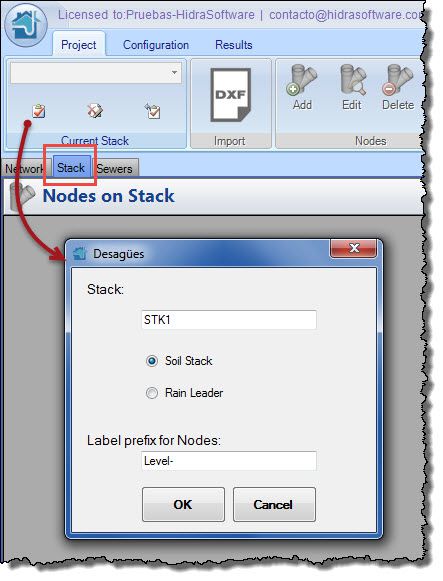
Here, besides the already known name and label prefix for the nodes’ names fields, you must select the type of Stack: Sanitary or Soil Stack or Pluvial or Rain Leader. In our case, it will be a Soil Stack (Sanitary).
The difference with the Rain Leader type of Stack is that on it you must specify, instead a network, the exposed area to water precipitation, as detailed in this tutorial.
When clicking the OK button, you will see that in the Stack’s nodes table is created, by default, one called ‘Stack´s base’. This node corresponds to the discharge point of the Stack and, for most cases, will be at the level of the ground floor of the building.
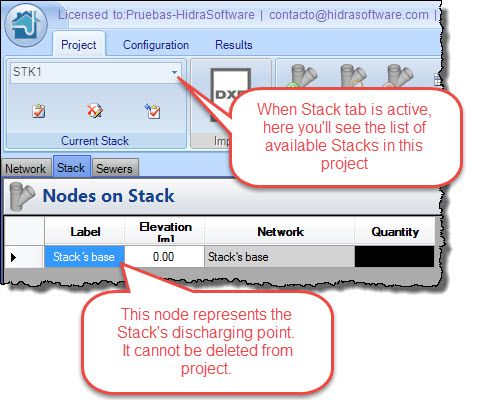
For Stacks, given its characteristics, the import option from a DXF drawing file is not available, so we will create its branches or sections manually. Let’s start.
Associating sanitary drainage networks to the Stacks in the Project
Each Stack’s node can have associated one or more typical networks, it being possible to specify more than one per type.
Starting with Stack 1, we know that it is only needed to associate the NW-1 network once per level. So we’ll create four nodes to represent the sanitary Yee fitting at each level and where the respective total fixture units will be incorporated.
Let´s create the first Stack Node, clicking on Add button in Nodes panel:
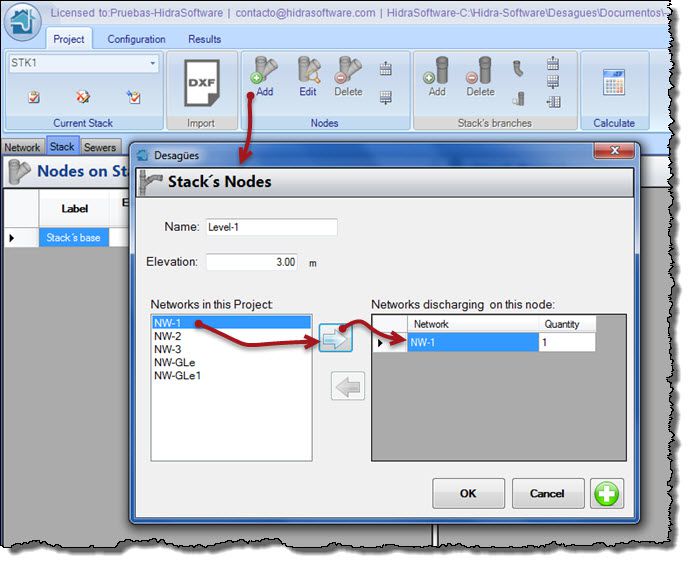
As seen on above image, we have specified 3 m for node´s elevation (assuming the story height is 3 m) and, from the list of available networks in the project, we have associated the NW-1 to this node. Similarly, we have created the remaining three nodes to obtain the following table of nodes:
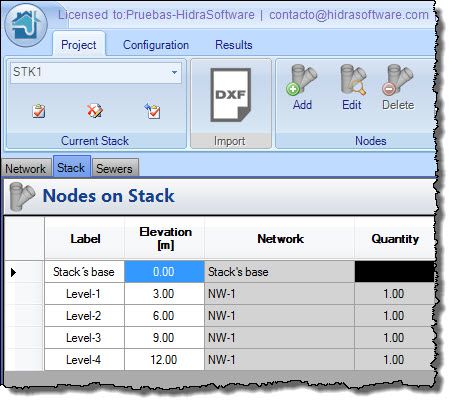
We are ready to add the Stack’s branches clicking on the Add button, Stack’s branches panel:
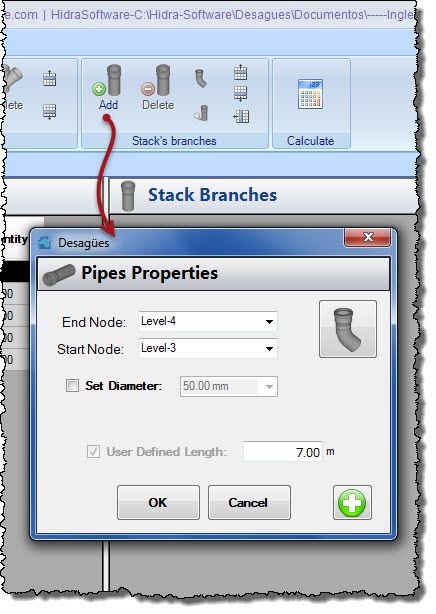
Note that in the case of the Stack’s branches, is imperative to specify its length; that is, there is no possibility of leaving the software to determine it from the coordinates of each node or elevations.
You can also specify, for each branch, additional fittings to those automatically assigned by the software by clicking the button on the top right corner of the dialog.
You can see in the above image that, for the last Stack’s section (Level4-Level3), we have specified 4 m more of pipe length than actually exists between the two nodes (3 m). Doing this, we are including in the calculation of total quantities of material, the necessary stack’s extension to the roof of the building. For the remaining sections we will use 3 m.
Finally, for this Stack, following will be the table of reaches:
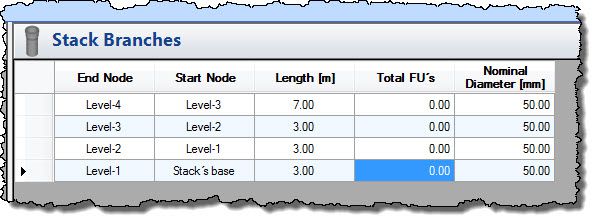
Similarly we have created the Stacks: Stk2 and Stk3, while for Stacks Stke and Stke1 (which, remember, are not really Stacks), we have only defined a node and a short section of pipe so as to not affect the total quantities of materials in the project. For example, the figure shows the data (nodes and branches) for Stke:

Thus we have quickly created the five required Stacks to collect sanitary drainage networks in this building.
We can now design under the premise of letting DESAGÜES determine the diameter of all branches in the created Stacks (option ‘Set diameter’ unchecked for all branches).
The process followed in the automatic design can be summarized in three steps:
- It will be established, if the stack is a two or more than two intervals stack, in order to establish which of the columns destined to Stacks in Project’s Diameters’ Manager is going to be applied for diameter selection as a function of total fixture units discharging on it.
- It shall certify that the selected stack’s diameter is equal to or exceeds the greater of the diameters of the networks that discharge into it. Otherwise, this will be the selected diameter.
- Selected diameter will be assigned to all of the stack’s branches, assuming that a uniform size in its total length is required.
Thus, let´s click on Calculate button, to see Calculation Results dialog:
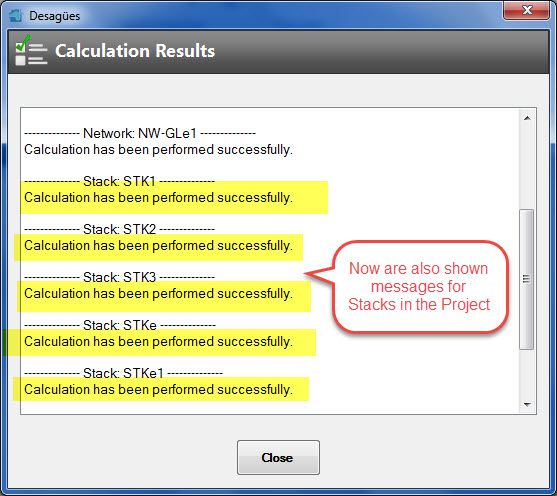
Verifying that errors, as disconnected nodes or stack’s branches not discharging (direct or indirectly) to the Stack’s base node, are not found.
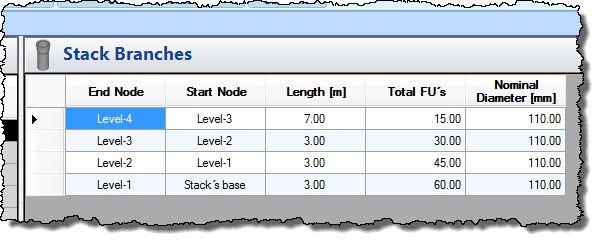
When checking the results, for example in Stk3, you can verify that the total fixture units in network NW-3 (15 F.U.s) have been accumulated for a total of 60 F.U.s at the base of sanitary stack:
The materials lists, at this time, includes the stacks’ quantities:

Again, at this level and by the way we have outlined the project components, we cannot yet have the total amounts of materials for our sample project. It is necessary, as will be discussed in the third part of these tutorials, to fully define the building drain system, and which will be responsible for capturing the Stacks flow (with sanitary networks included, of course) and thus performing the project’s grand total bill of materials.
You can download the generated DESAGÜES’ project from this link.