


In this tutorial we will show you the new features added to the most recent release of our building’s drainage systems design software (Version 2.0) which will ease, even more, the analysis, calculation, and design of sanitary and storm pipes in buildings.
1. Nodes with Sanitary Fixtures Automatic Labeling.
On DESAGÜES’S drawing area, when you opt by drawing the building’s drainage systems components on it (specifically the sanitary horizontal branches pipes networks), upstream drawing direction is assumed, that is, you will be drawing the pipes from their downstream node (first mouse click) toward its upstream one (last mouse click).
In case that, by mistake, you have drawn one or more pipe branches in the opposite direction (downstream direction), notice that the pipe flow reversing tool is available on the Drain Branches panel at the PROJECT tab:
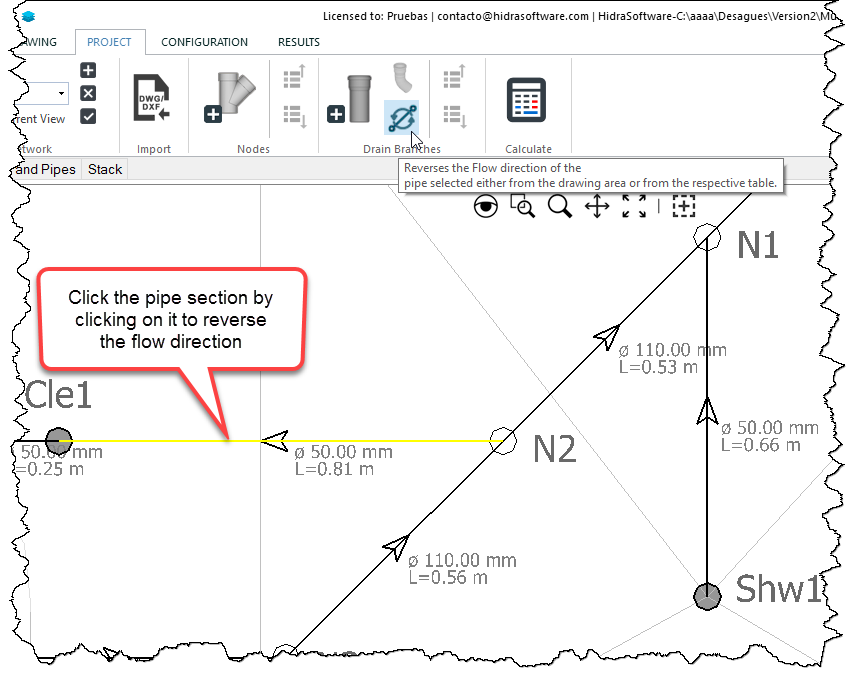
When you click on this button, all that is required is to select by picking on the selected pipes section in order to reverse their flow direction (direction arrow changes)
On that basis you will see that, when any network extreme’s pipe section is created (remember that in our building’s drainage systems design software, the sanitary network must have a branch topology) after its last node is drawn and you right-click the mouse or hit the Escape key in order to cancel the pipes drawing command, the Nodes Properties dialog will be shown:
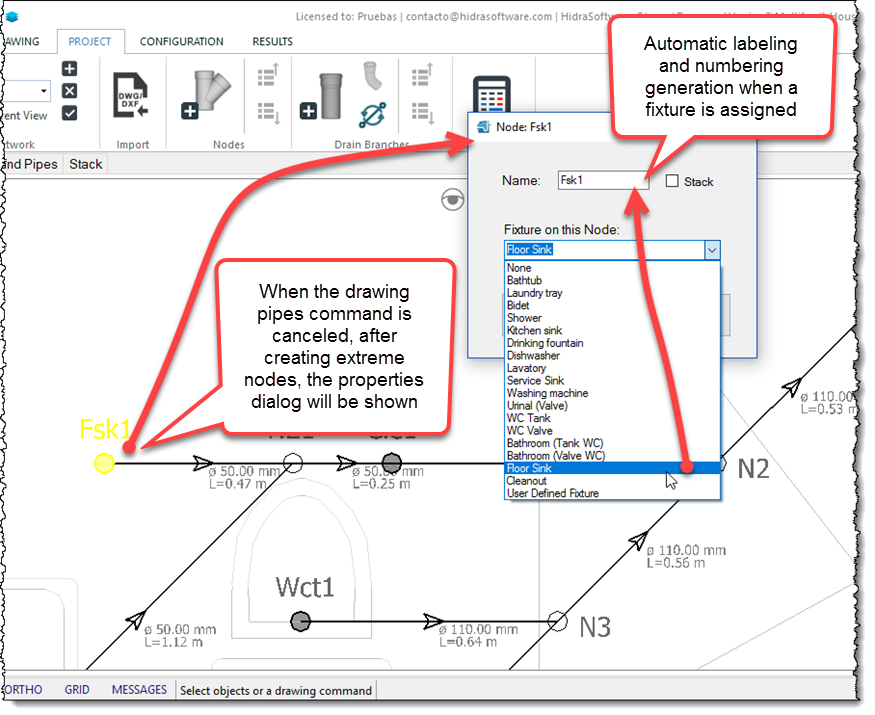
Thus it will be possible to quickly select the type of plumbing fixture to be assigned to the current node in the building’s sanitary drainage system.
In addition you will see that, when the type of sanitary fixture is changed from the aforementioned dialog, automatically a node’s label will be created for you based on a combination of the abbreviation that you have defined for the fixture in the Fixture’s Manager and a number, related with the actual total of similar sanitary fixtures created in the current Sanitary Network:

Hence, you have no reason to be concerned by identifying nodes with sanitary fixtures assigned in your building’s sanitary networks.
For more details about the Sanitary Fixtures Manager please see this tutorial.
2. The User-Defined Sanitary Fixture
In the previous version of DESAGÜES, the Nodes properties dialog had a field to allow the user to set the number of similar plumbing fixtures assigned to the current node:
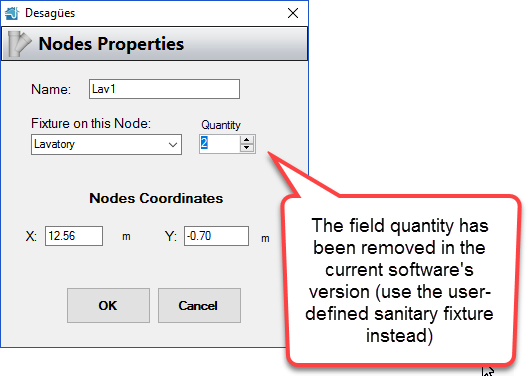
On the actual version we have chosen, in response to requests from some software’s licensees, to remove this field and replace its function with the user Defined Sanitary Fixture, which can be found on the dialog’s list of available fixtures:

After this type of fixture has been selected for any node in the sanitary network, three options are shown in the dialog:
Description: This is the “generic” name of the plumbing fixture that you wish to assign to your user defined fixture. This field will be used for grouping and totalizing, on the bill of materials, the various kind of plumbing fixtures within your building’s sanitary system project:
In addition, Description field is used within the project’s tables to relate the user defined sanitary fixture with the corresponding drainage fixture units conveyed by sanitary pipes:
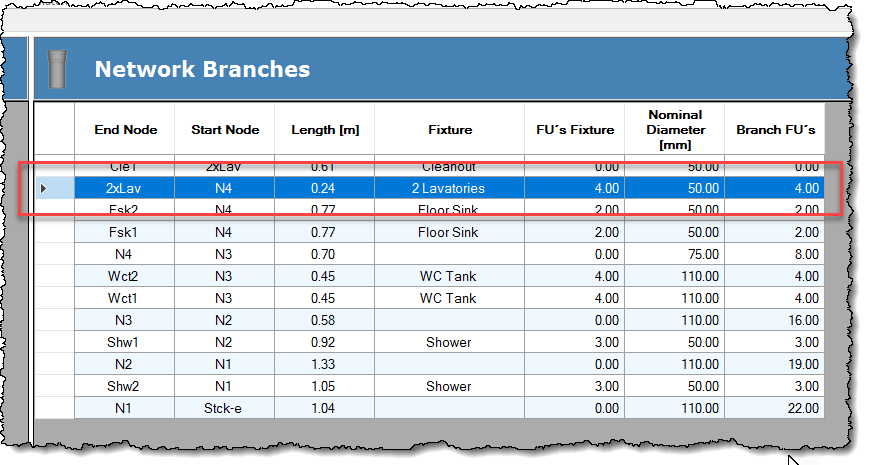
(Drainage) Fixture Units: Here you must enter the total number of fixture units for the user defined fixture.
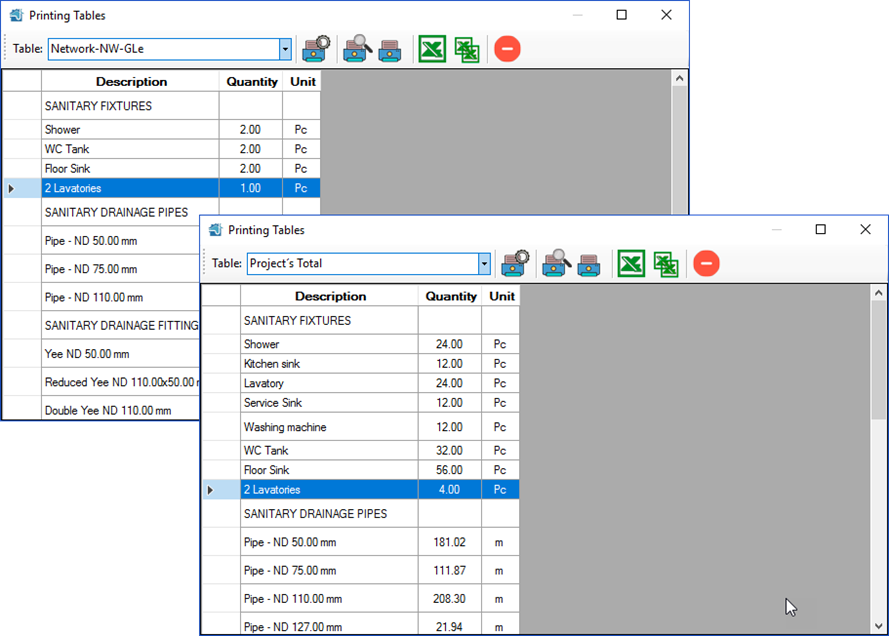
On the previous images example, since we are modelling two lavatories discharge into one node, we have entered 4 F.U., twice the normative value for one lavatory (2 F.U.).
Fixture Drain Pipe’s Properties Button: When you click this button, the already known pipes properties dialog will be shown:
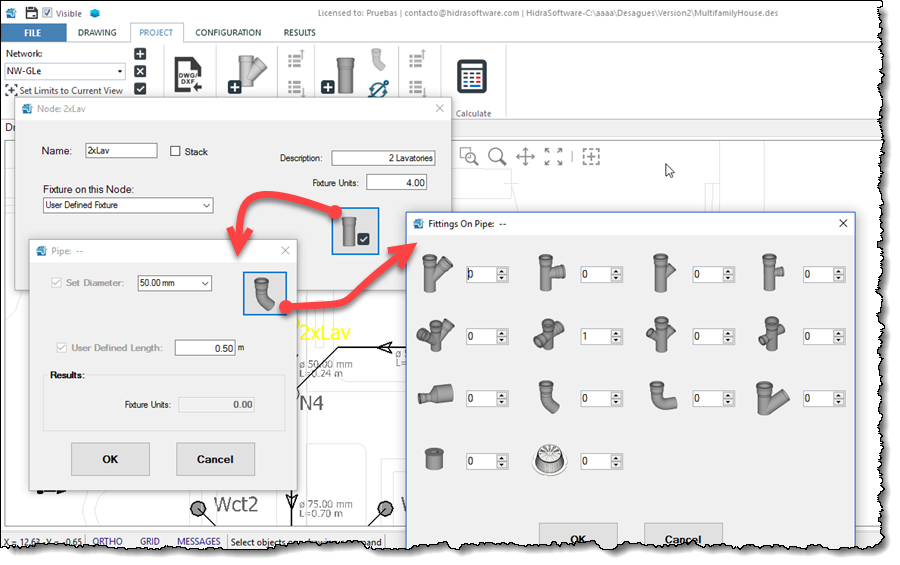
From this dialog you must set diameter, length (or height, since this one is a vertical pipe), as well as the sanitary plumbing fittings you wish to include in the Fixture’s Drain pipe for your user-defined fixture. This data will be used, of course, for the bill of materials creation within the building’s sanitary system project.
3. Drawing Files Importing Changes
In the most recent version of our building’s drainage systems design software, although criteria referred to in this tutorial must be addressed, there are some changes you should take into account when converting graphics entities contained in drawing files into DESAGÜES’ objects:
- Now it is possible to import AUTOCAD® DWG drawing files, besides files with DXF format.
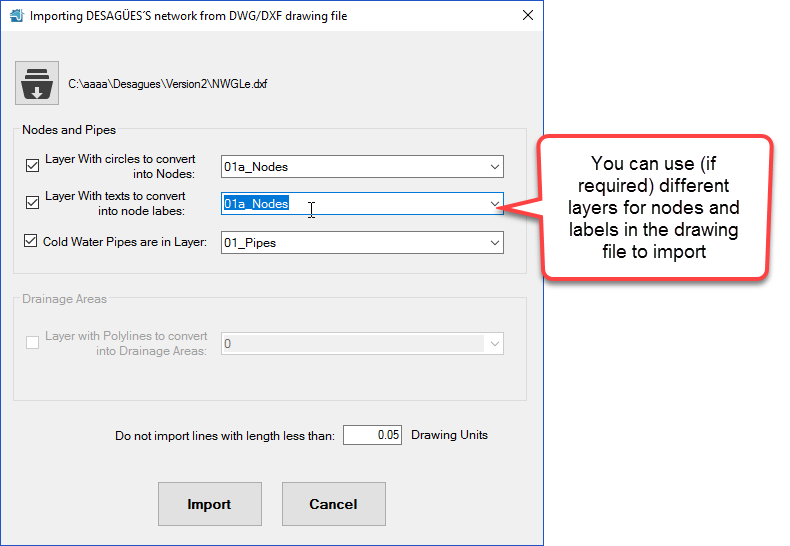
- As you will notice in the drawing files importing dialog, it’s now possible to “separate”, using layers in the drawing file, the circles that represent nodes from the text and multitext used to label them:
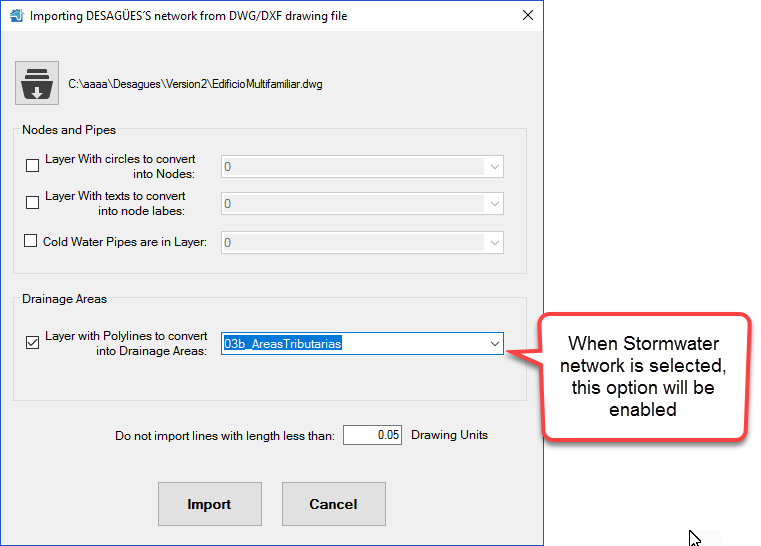
- You can, when the current network is a stormwater conveying one, polylines that define catchment areas, provided that they are grouped into one drawing layer:
4. Two types of building’s drainage networks: Sanitary and Pluvial
As you already know, parameters to be used by our building’s drainage systems design software to perform the automatic assignment of diameters, in the case of horizontal branches pipes, and diameters and longitudinal slopes, in the case of building’s sanitary and storm sewers as well as in the roof rain gutters networks (more about them later), is performed from the values you have entered in the Diameters manager dialog tabs as have been explained in this tutorial.
In the case of building’s sanitary drainage networks there’s nothing new to highlight in relation to what has been told in the aforementioned tutorial.
But in the current DESAGÜES’ version we have incorporated the possibility to analyze and design a building’s roof rain drainage networks using semicircular (or square) section gutters.
This type of storm network design will be defined from what you’ve entered in the Pluvial-Gutters tab of the Diameters Managers:
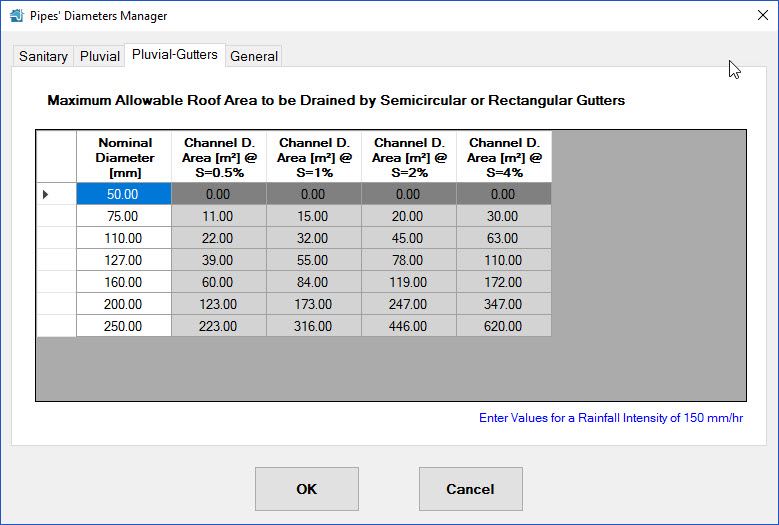
Here, just like in the case of building storm sewers, the values to be entered must be your country’s normative ones for each pipe size and for each of the standard longitudinal slopes (0,5%, 1%, 2% and 4%) and for a rainfall intensity of 150 mm/hr.
If the zone where the building’s drainage project is located has a rainfall intensity different from 150 mm/hr, you must enter the corresponding value in the text provided at the Pluvial tab in the aforementioned Diameters Manager dialog:
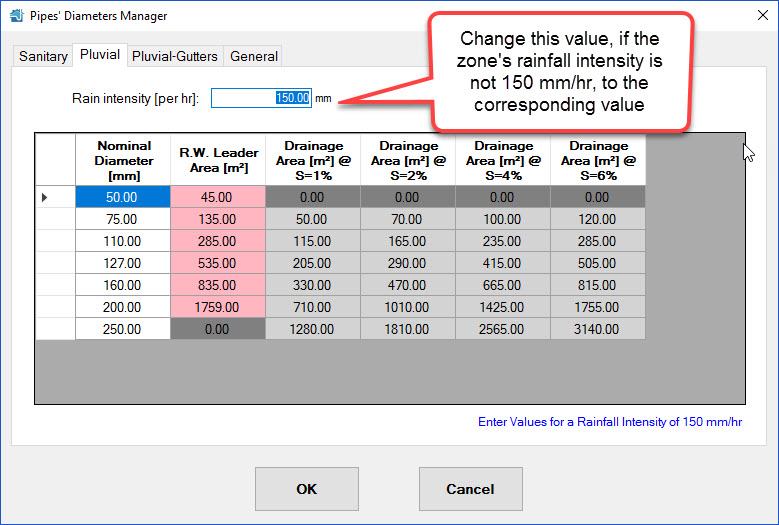
Thus, DESAGÜES will perform the required drainage areas transformation so as to adapt your building’s stormwater design to the actual rainfall values.
Let’s see now the procedure to be followed for creating a rain gutter network to drain a single-family building’s roofs:
When the Add a new network button is clicked from the Current Network panel at the PROJECT tab you will notice, in the corresponding dialog, two options for defining the type of network:
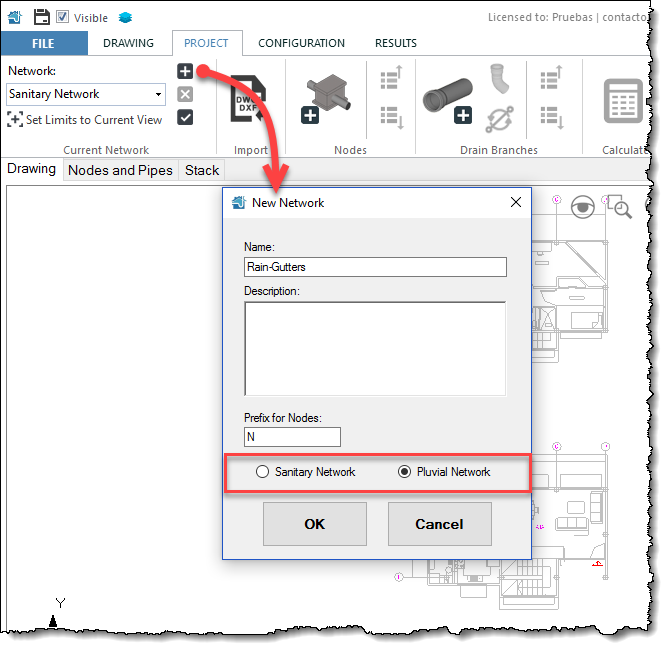
Thus, in the case of rain gutters systems, you must select the Pluvial Network option.
After entering the network’s name, defining its type, and clicking the OK button in order to incorporate it into the current project, you will see it in the list of available networks.
Now everything is set to begin the pipe sections creation by drawing them directly on the software’s drawing area. Just like you would do in a sanitary branches network.
So, let’s click the button Add Pipe in order to create the rain gutters sections:
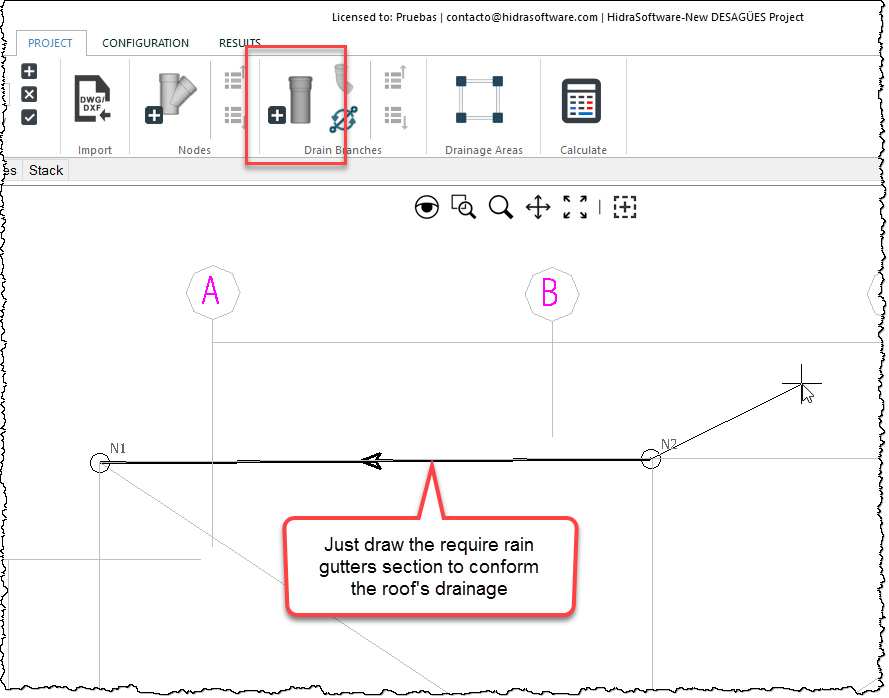
Once the network’s rain gutters sections have been drawn, you must define the system’s discharge point, which is supposed to be a rain leader that will be later created within this building’s drainage system project:
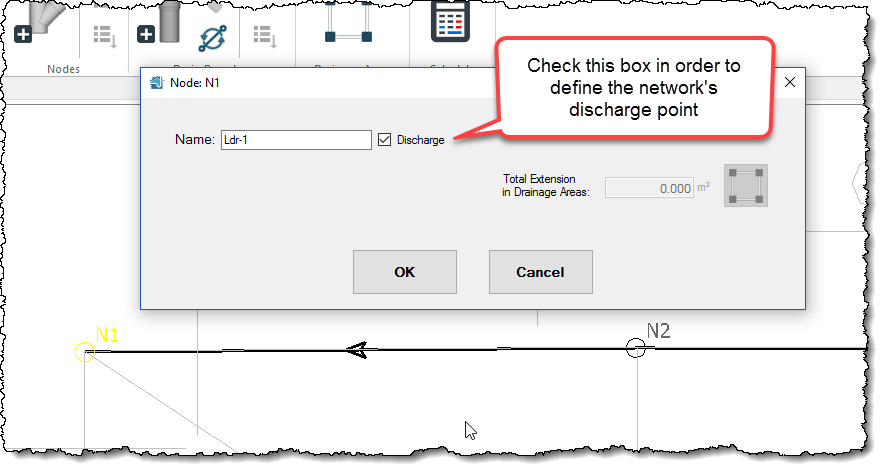
Finally it is required to define, for each node within the rain gutters system (except the one defined as discharge node) the roof tributary area and from which will be calculated the total rain catchment area conveyed for each rain gutter section in the network. From this value, diameters and slopes will be automatically assigned by our building’s drainage systems design software.
To do so you have two options, as you can notice in this type of network’s nodes properties dialog:
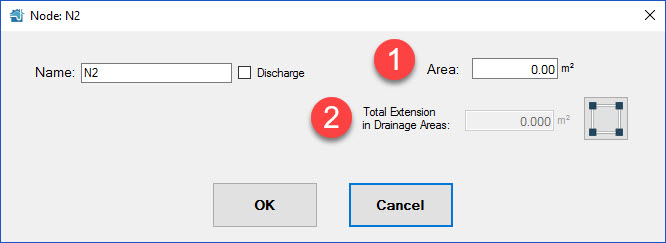
- Manually entering the catchment area extension value in the field marked with 1 on previous image.
- Selecting, by clicking the button (highlighted with 2 on previous image), some of the building drainage project’s available drainage areas. Thus, it is only required to draw them on the project’s background image and let DESAGÜES determine their extension value and assign them to the respective nodes.
In the case of the second option you will see that, when a pluvial type network is the current one in the project, the button for Drainage Areas creation is visible in the PROJECT tab:
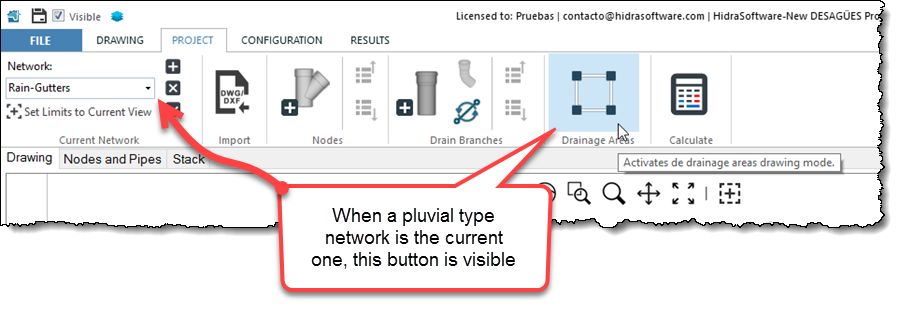
By clicking on this button, the polygons drawing command becomes active, so it will be required that you, by picking its vertices’ location, draw the required drainage areas in the project in order to model the roofs and rain-exposed areas of the building and that will be affluent to the stormwater drainage system.
In our example we’ll need two polygons to represent the rooftops areas to be drained through semicircular rain gutters:
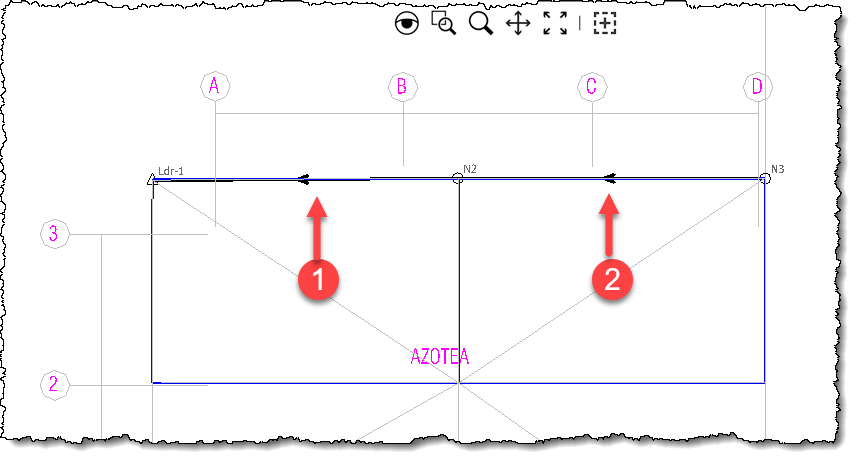
All that it’s needed now is to assign them to each node. For example, for Node “N2”:
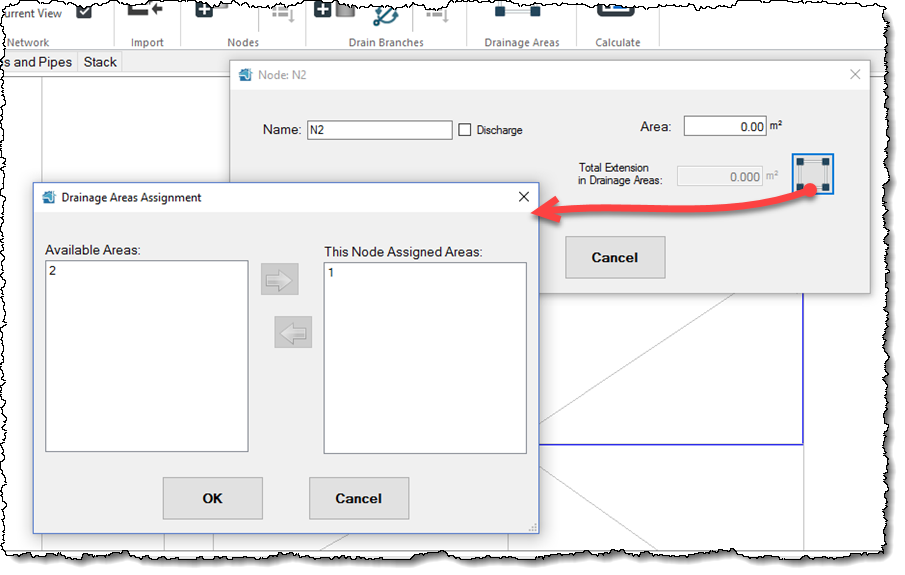
And everything is set, so let’s click on the Calculate button in order to perform the rain gutters design (diameters and longitudinal slope automatic selection):
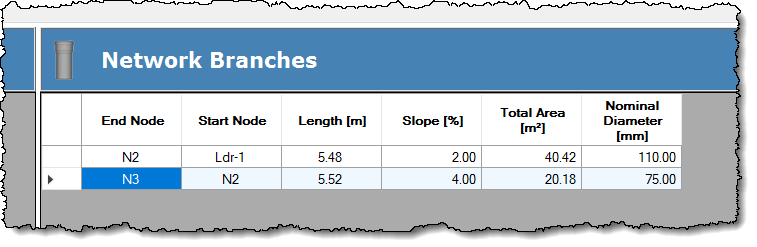
Regarding drainage areas, it is important to note that they can also be assigned to rain leaders, just like we did in the multi-family building example.
Later, when rain leaders are created, you will notice that now the nodes properties dialog offers the project’s list of available rain gutters networks (only one in our example), so as to allow you to assign any of them to the corresponding leader node:
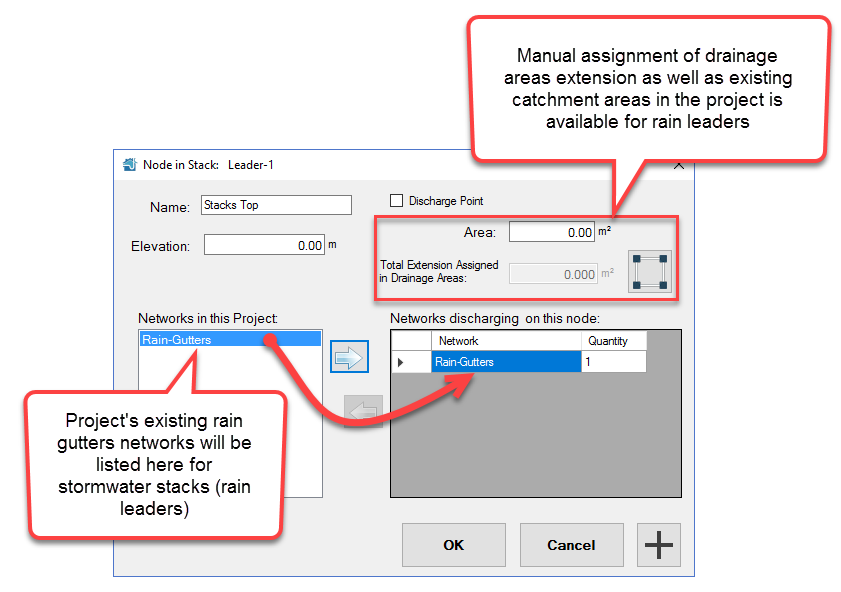
In this assignment, the total area drained by the affluent (assigned) networks will be totalized in order to be used in the rain leader’s design.
As you can see the using our building’s drainage systems design software for stormwater components design is very simple.
What do you think?